 SwiftPAT
Test & Tag
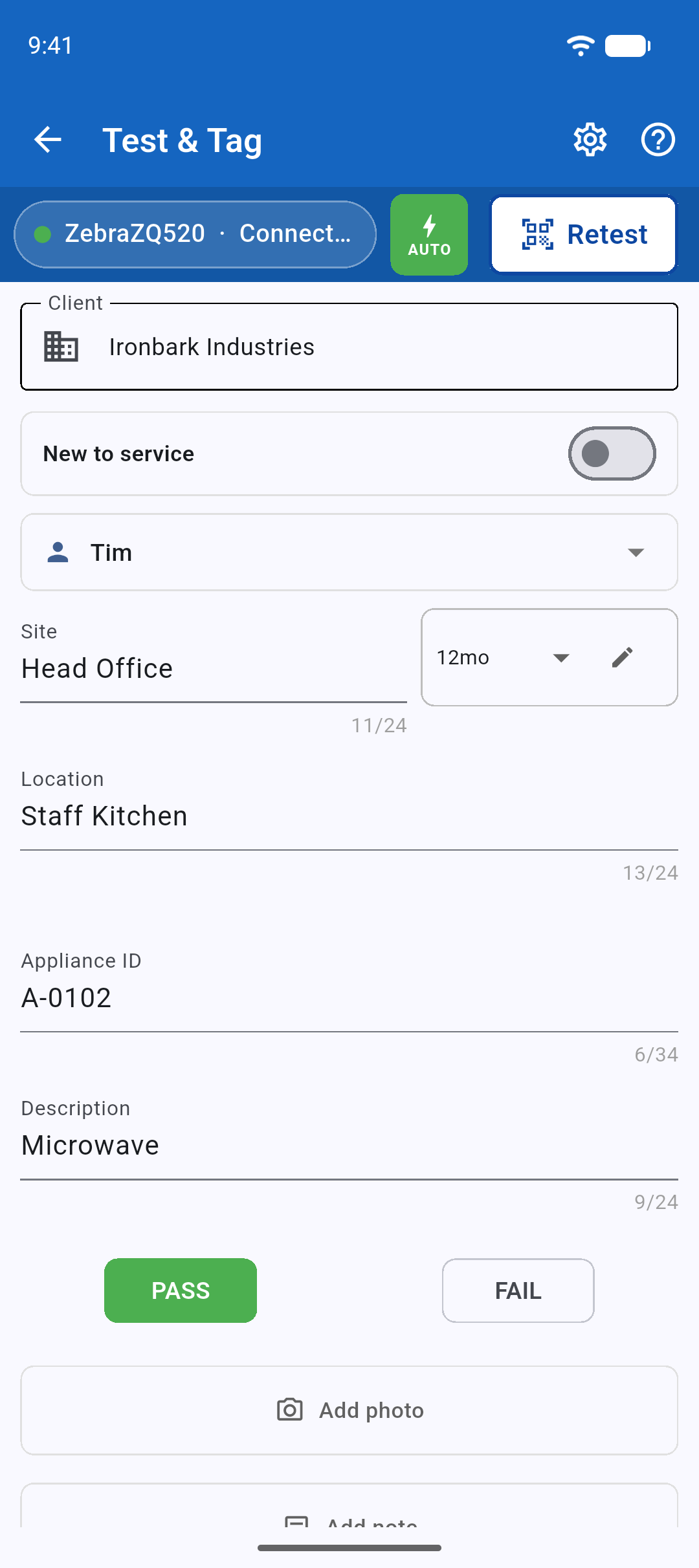
The screen for a new appliance. Choose the client, then fill in the site, location, appliance ID and description. Previously used descriptions appear as suggestions. Start typing "ext", for example, to find Extension Lead.
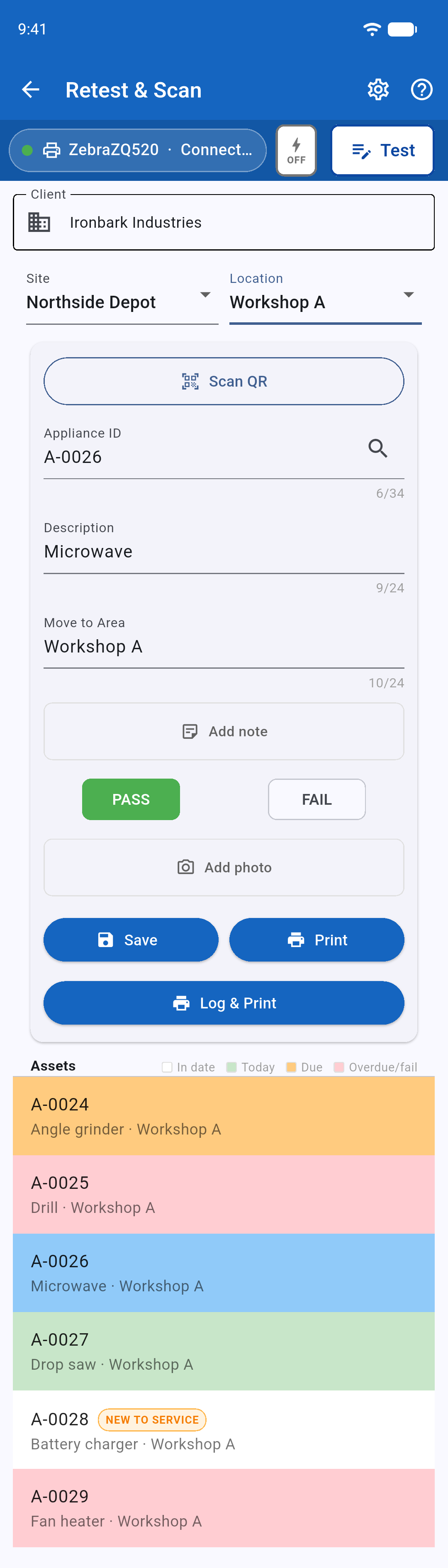
- Save records the test, Print prints the tag, and Log & Print does both.
- The appliance ID rolls forward on its own, keeping any zero-padding: BO-KIT-004 is followed by BO-KIT-005.
- Each site keeps its own retest period. Set it once when you arrive.
- With AUTO enabled, SwiftPAT records the test and prints the tag as soon as all required fields are filled in.
Retest & Scan
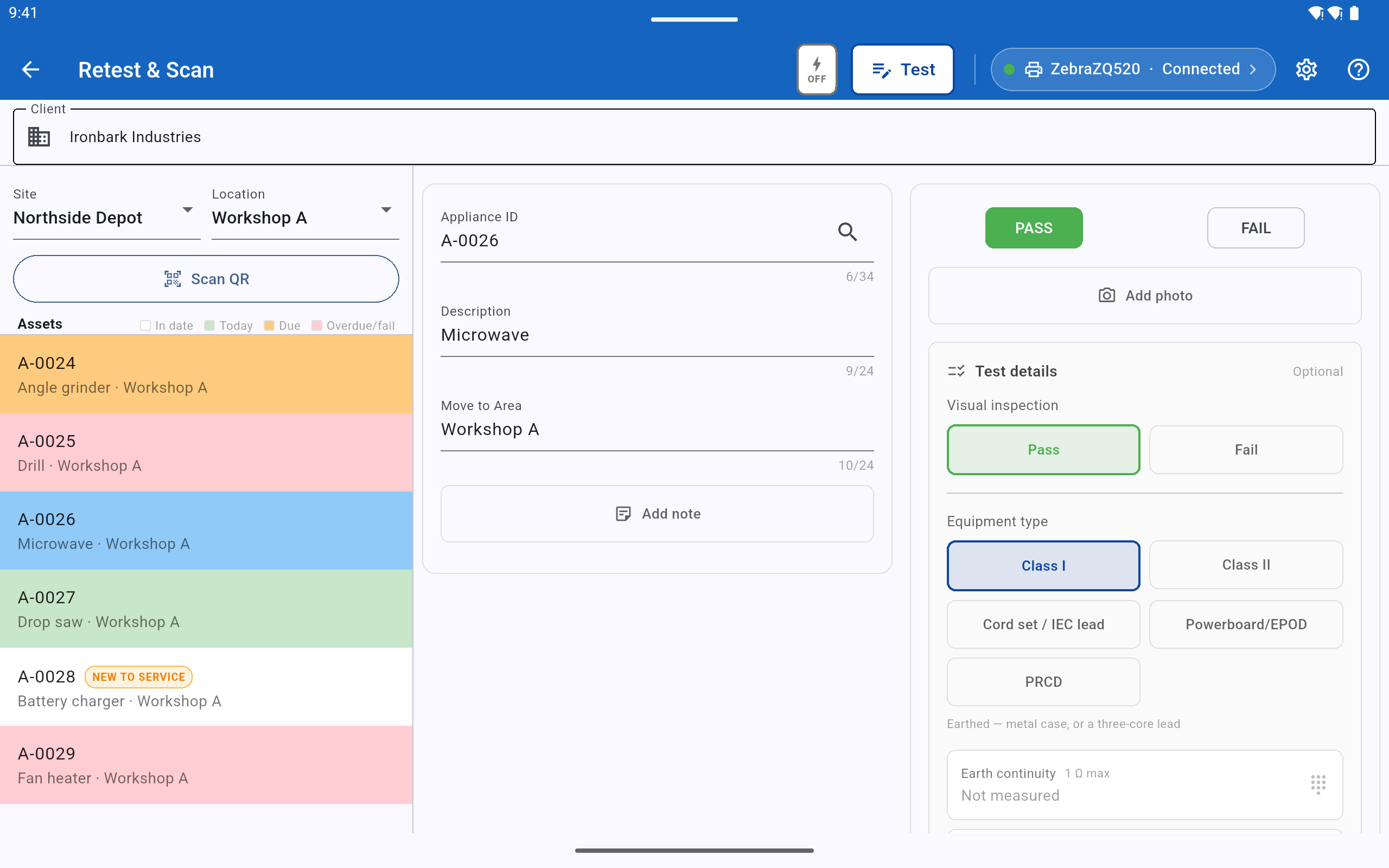
Scan the QR code on an existing tag, enter the appliance ID or select the appliance from the asset list. The list is colour-coded so you can quickly identify items tested today, due for retest, overdue or failed. If an appliance is recorded at a different site or location, SwiftPAT asks whether it has moved.
Quick Mode
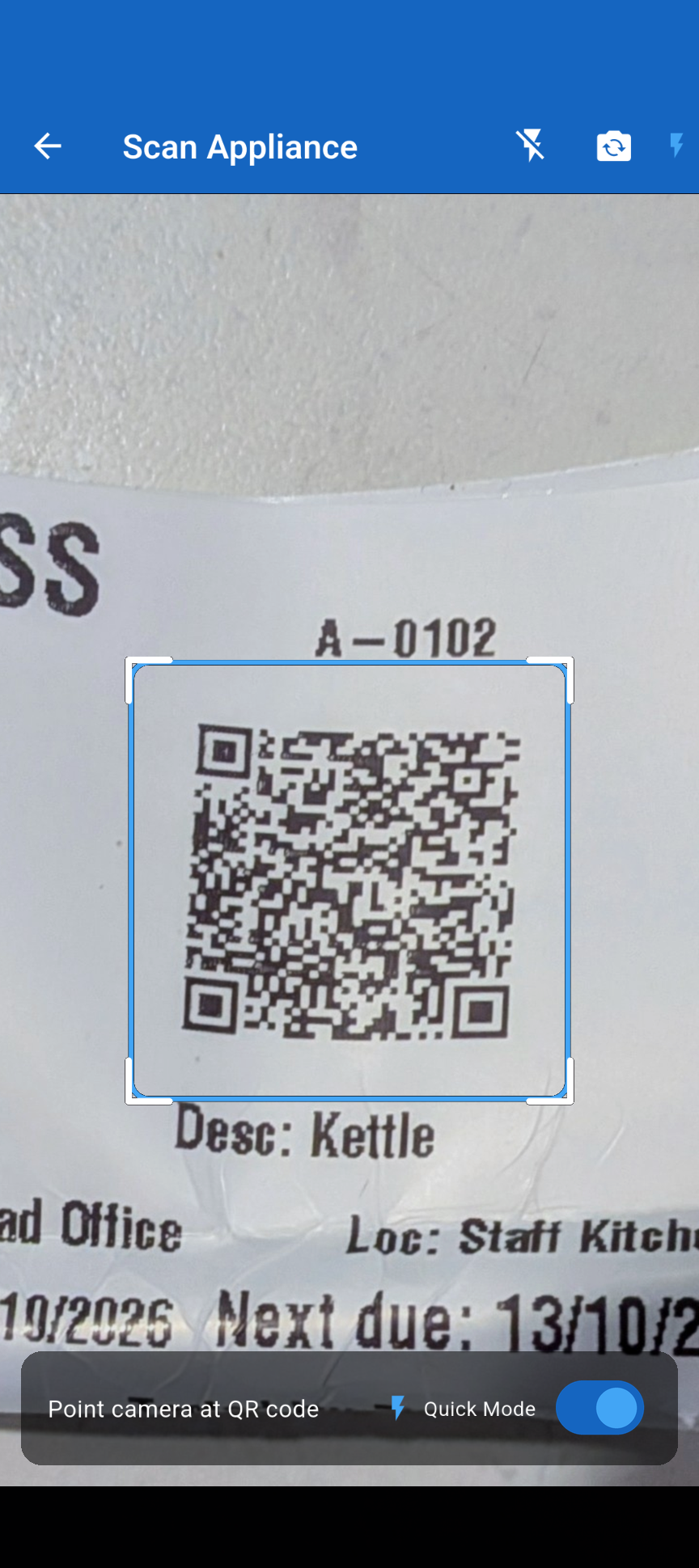
Scan, pass, print, next. Quick Mode records a pass and prints the tag the moment a QR code is read, so you can work straight down a bench without stopping.
Tags and printers
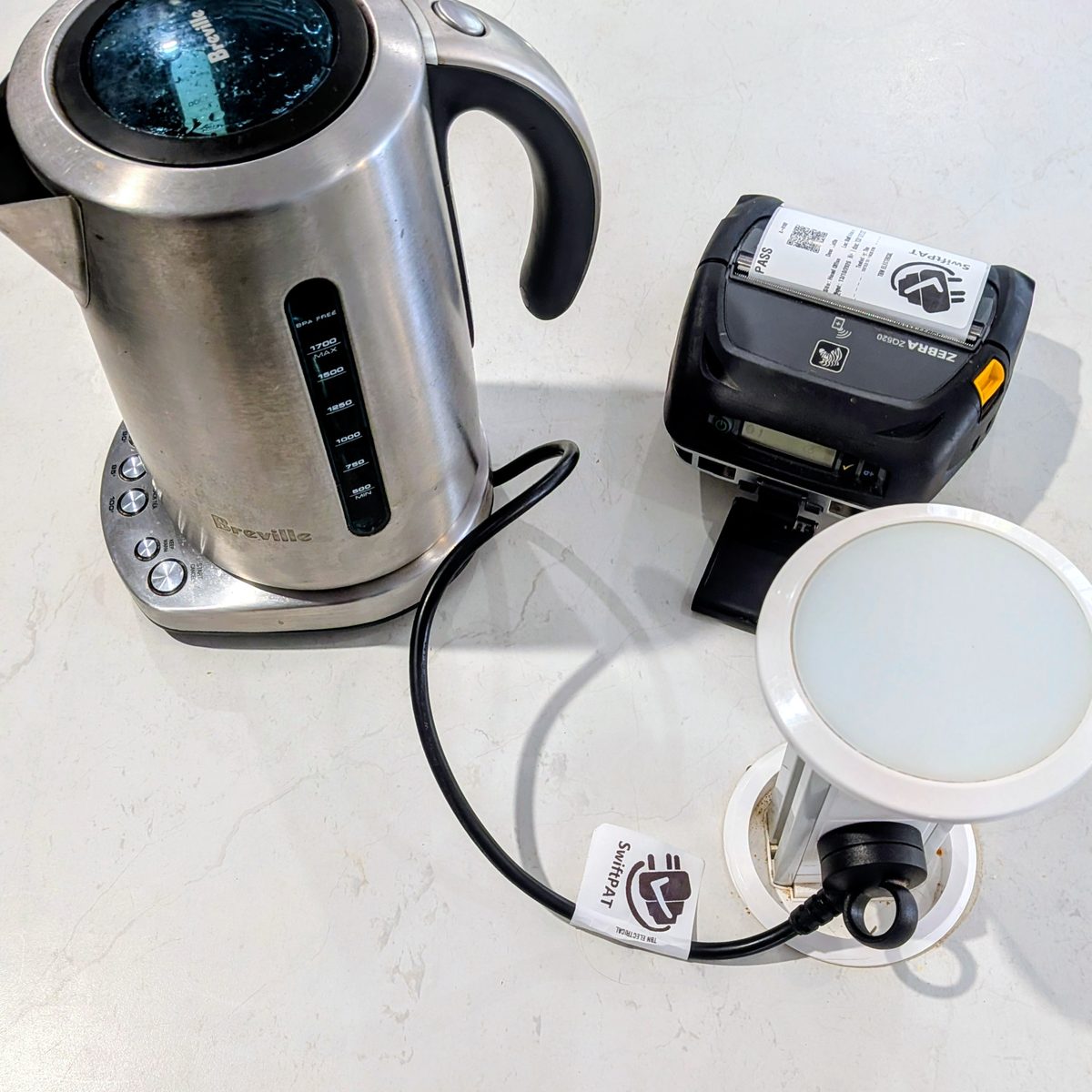
Print tags over Bluetooth to a Zebra ZQ520 or ZQ521 (100 × 50 mm tags) or a Godex RT200 (99 × 43 mm tags).
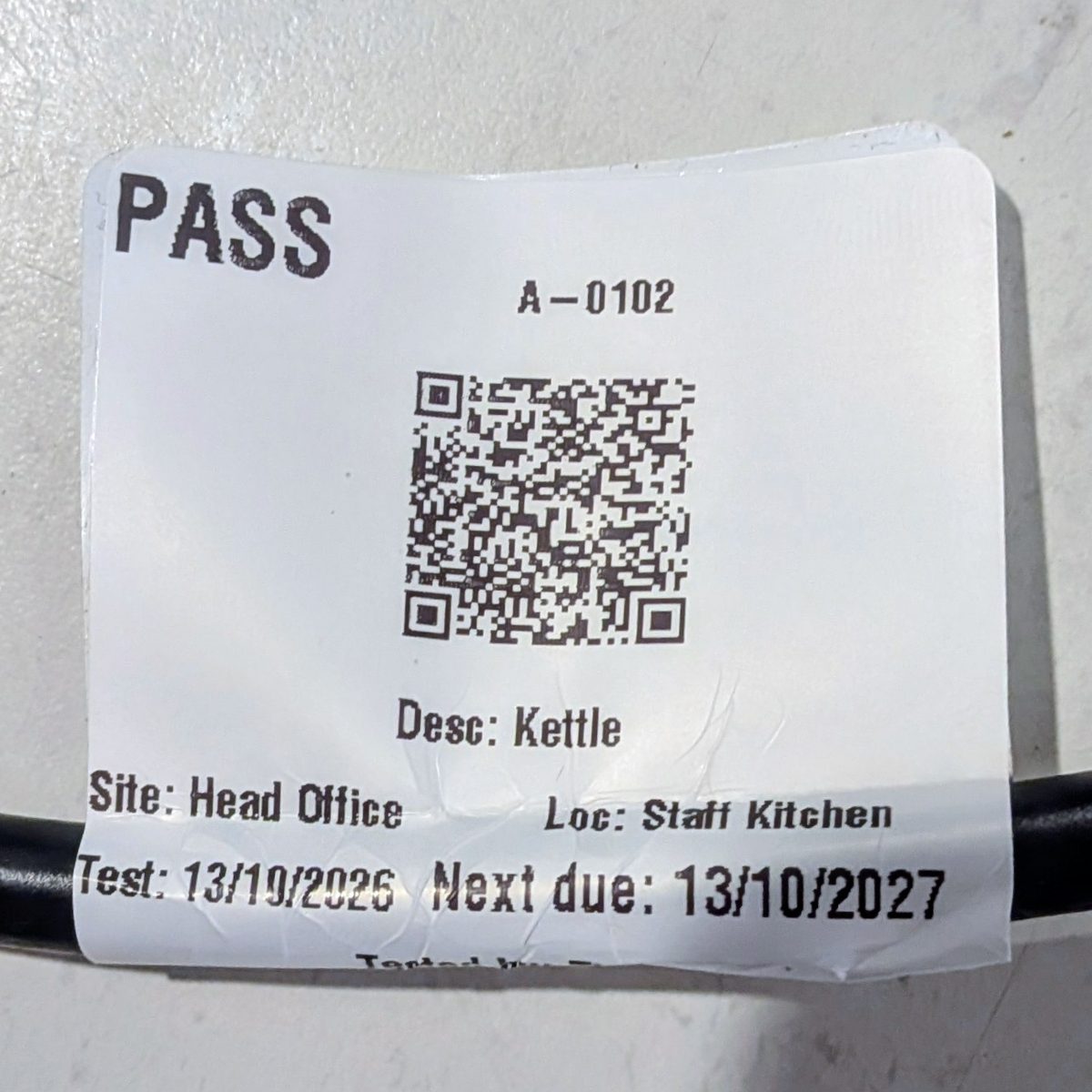
- Your company logo on every tag.
- A QR code on each one, which is what makes next year fast.
- Reprint from the asset list with a swipe.
- Failed items get a clear DO NOT USE tag.
Test results
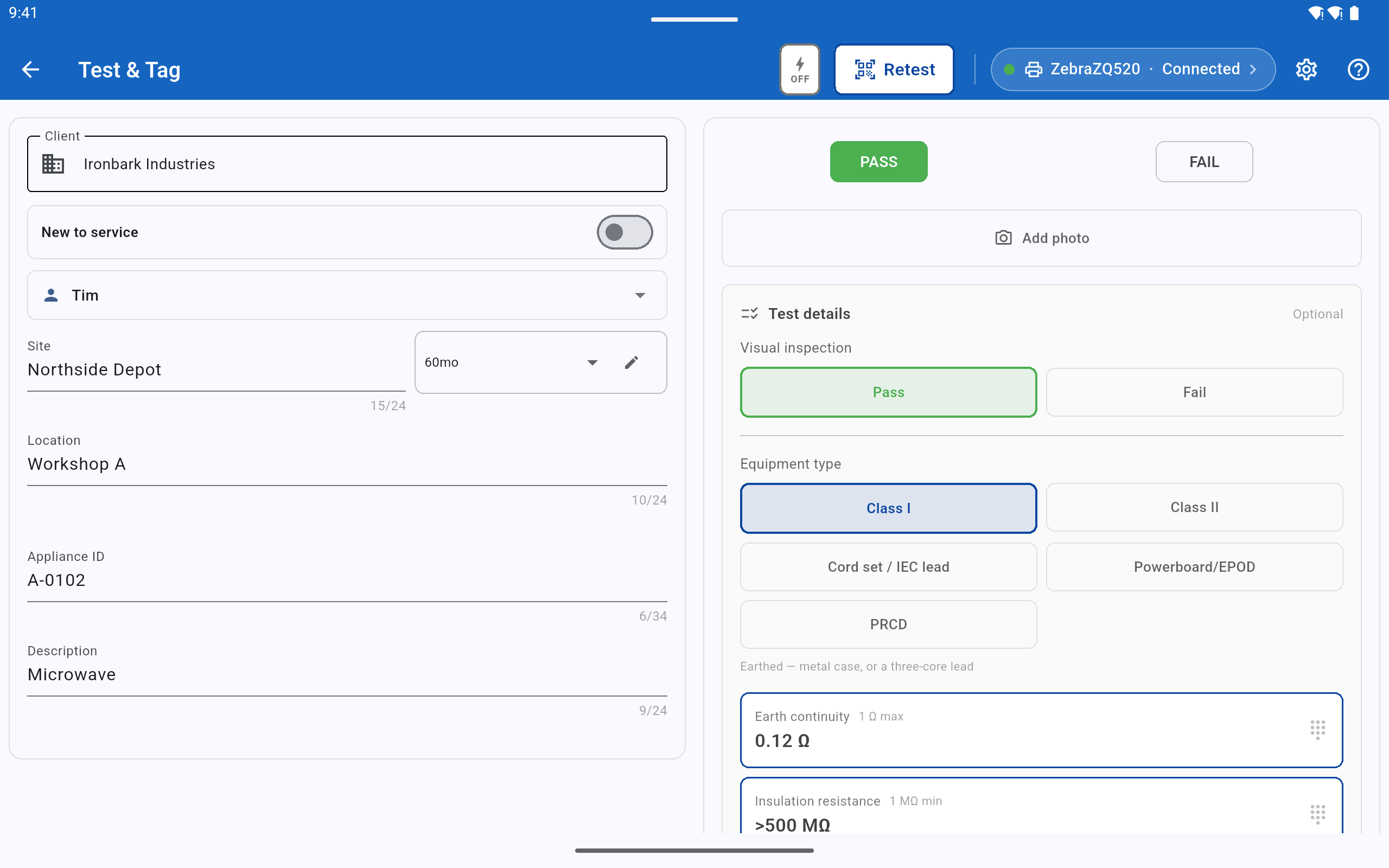
Record the details your job requires. Enter readings using the large, touch-friendly keypad. SwiftPAT only asks for readings relevant to the selected equipment type. If a reading is outside the configured AS/NZS 3760 limit, the app suggests a FAIL. It never decides a PASS for you.
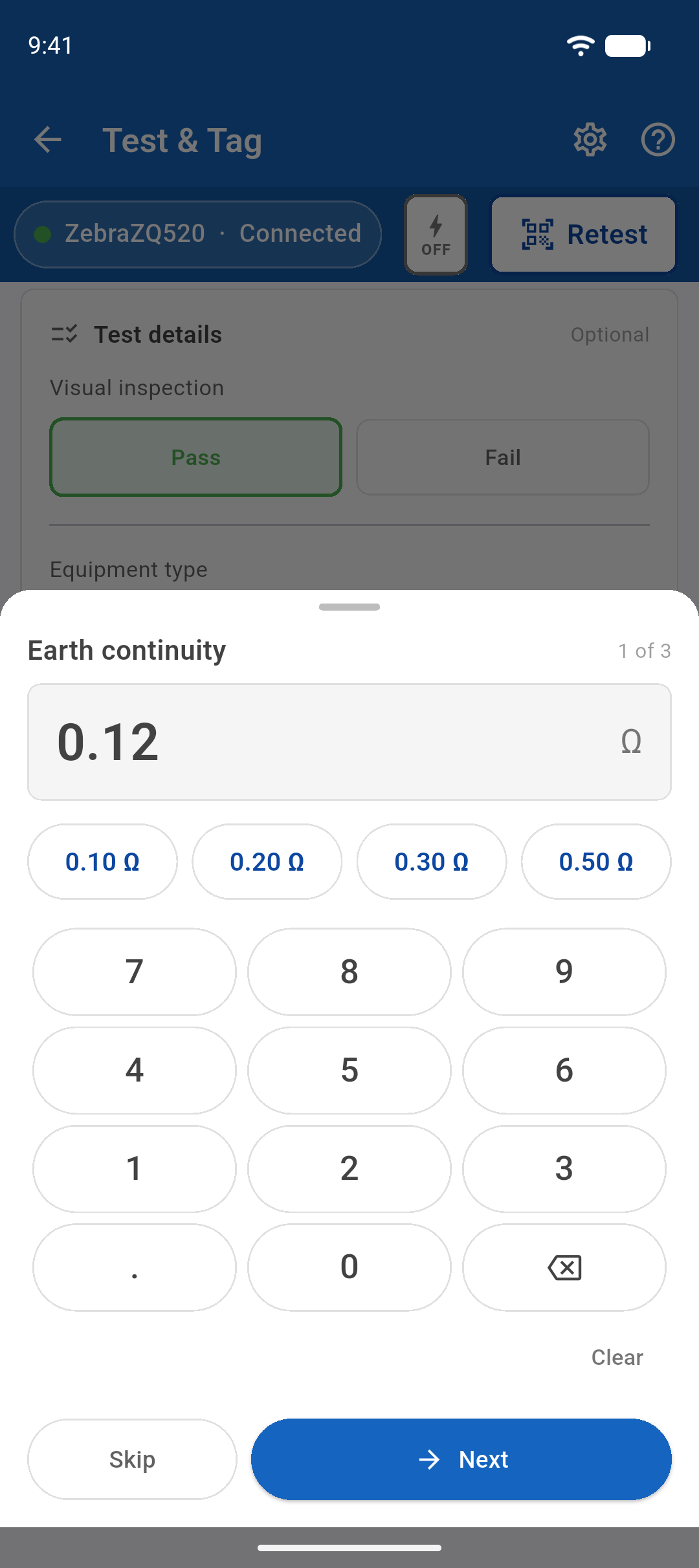
- Three recently used readings
- Last-used reading
- One-tap result entry
- Large numeric keypad
- Skip or move to the next result
Photos and notes
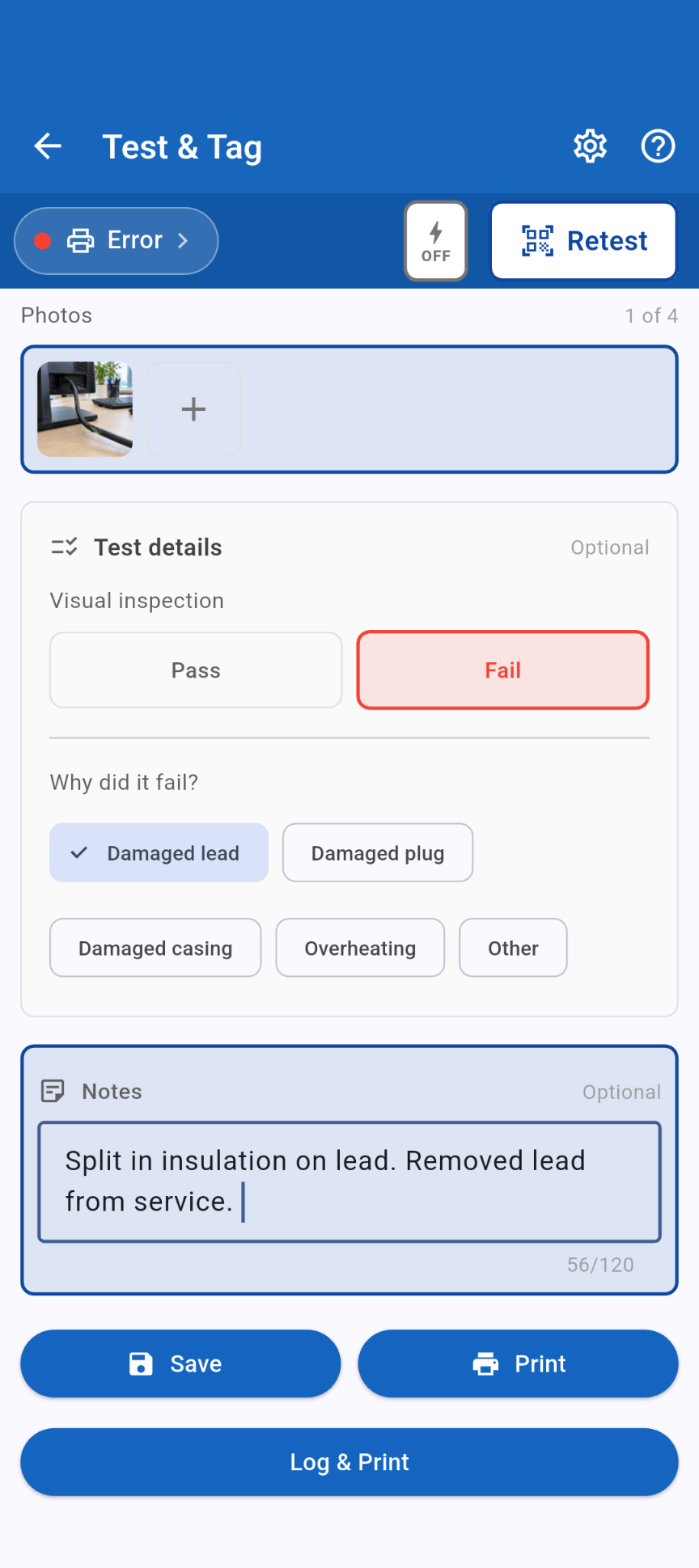
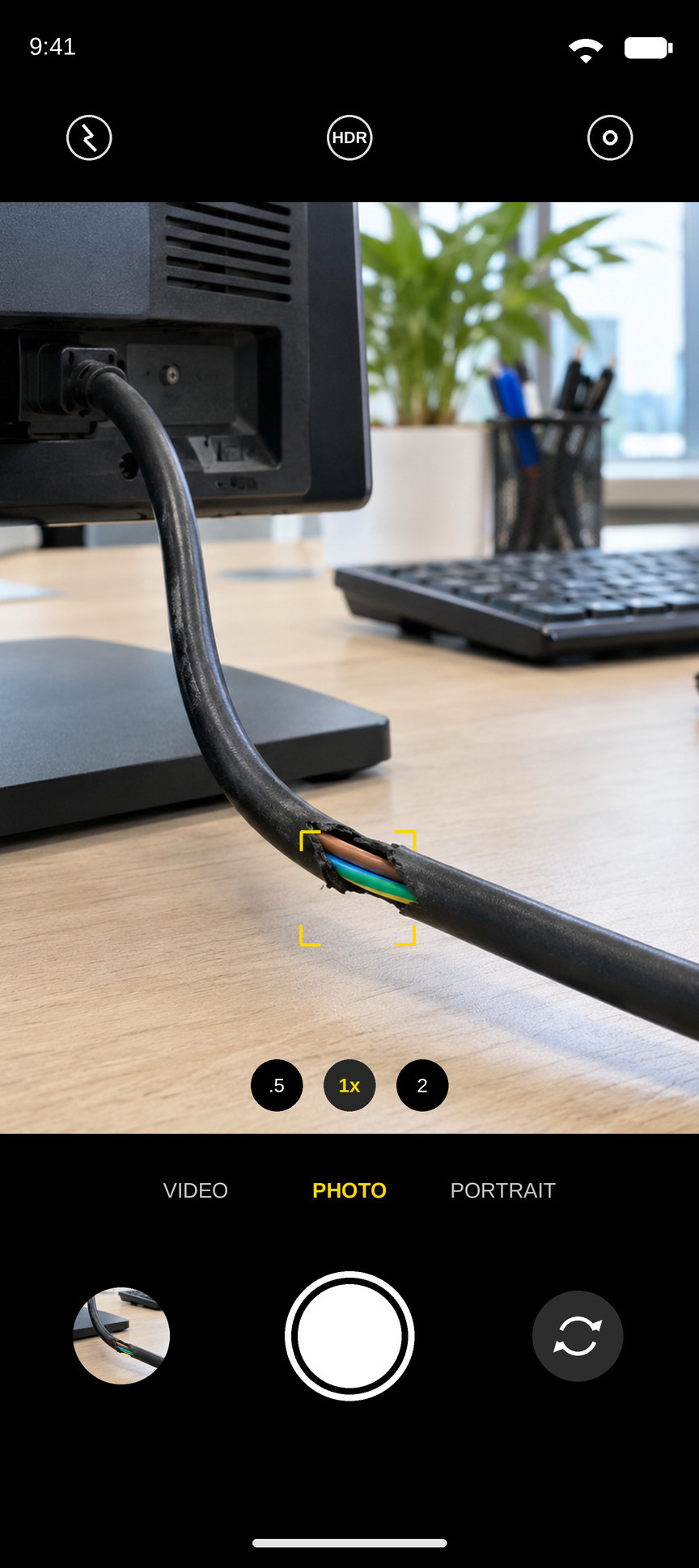
Keep a visual record of appliance condition and anything worth noting. Add up to four photos to each test, such as damaged casing, an appliance nameplate or other defects.
Add a short note to record important details, observations or follow-up requirements. Photos are included in the PDF report.
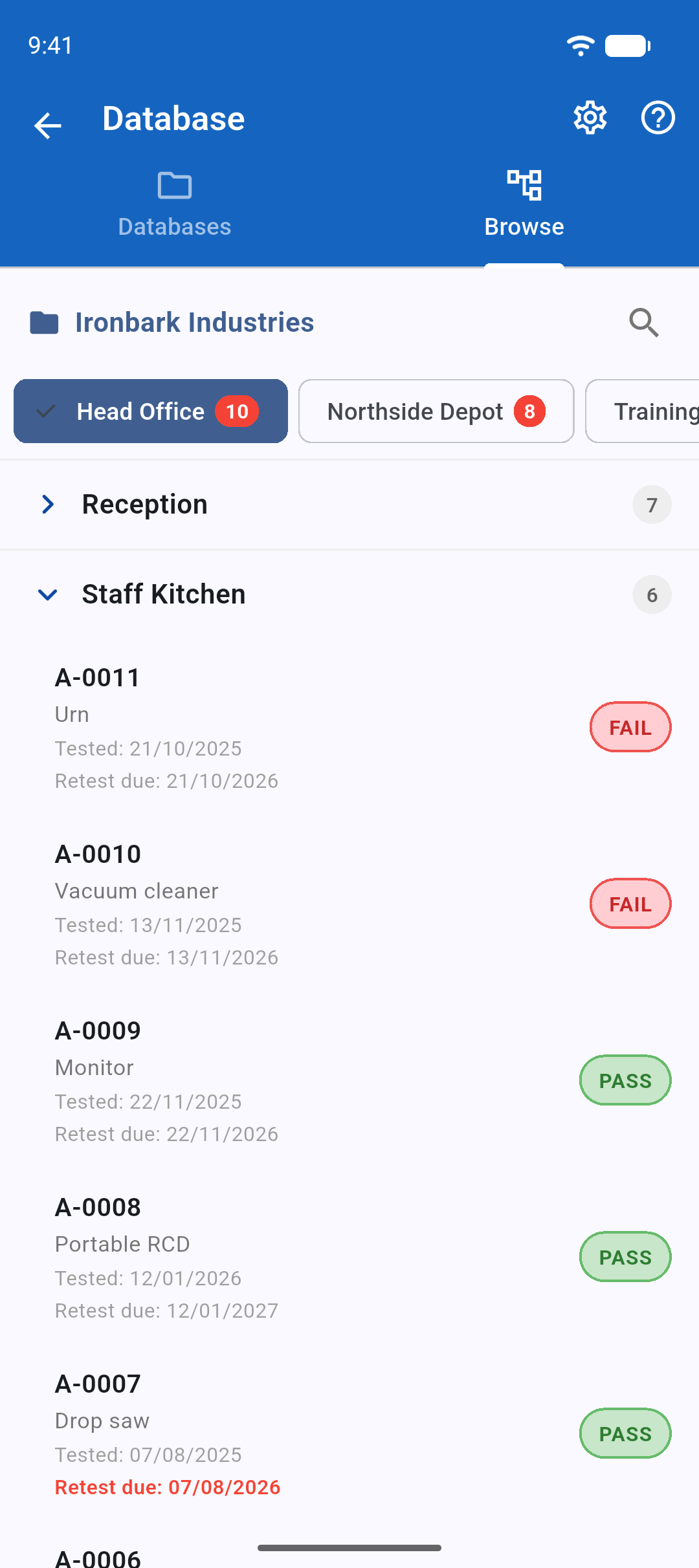
Clients, sites and records
Each client has a separate register containing its sites, locations and appliances. Appliance IDs are unique within that client, so a scan won't return duplicate matches. Browse appliances and their test history in Database.
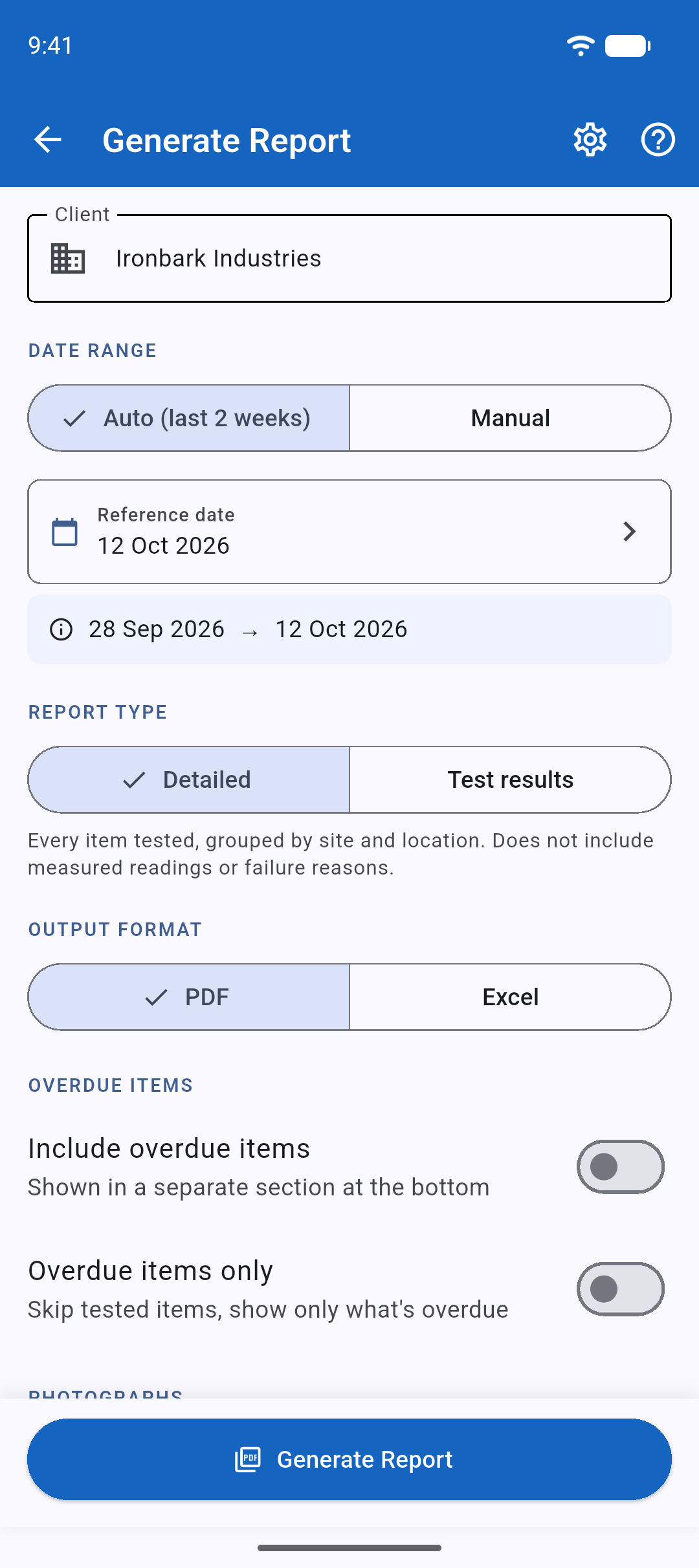
Reports
Create PDF and Excel reports with your business details and logo. Choose a detailed or summary report, set a date range or show overdue items only. Share the finished report by email or through another app on your device.
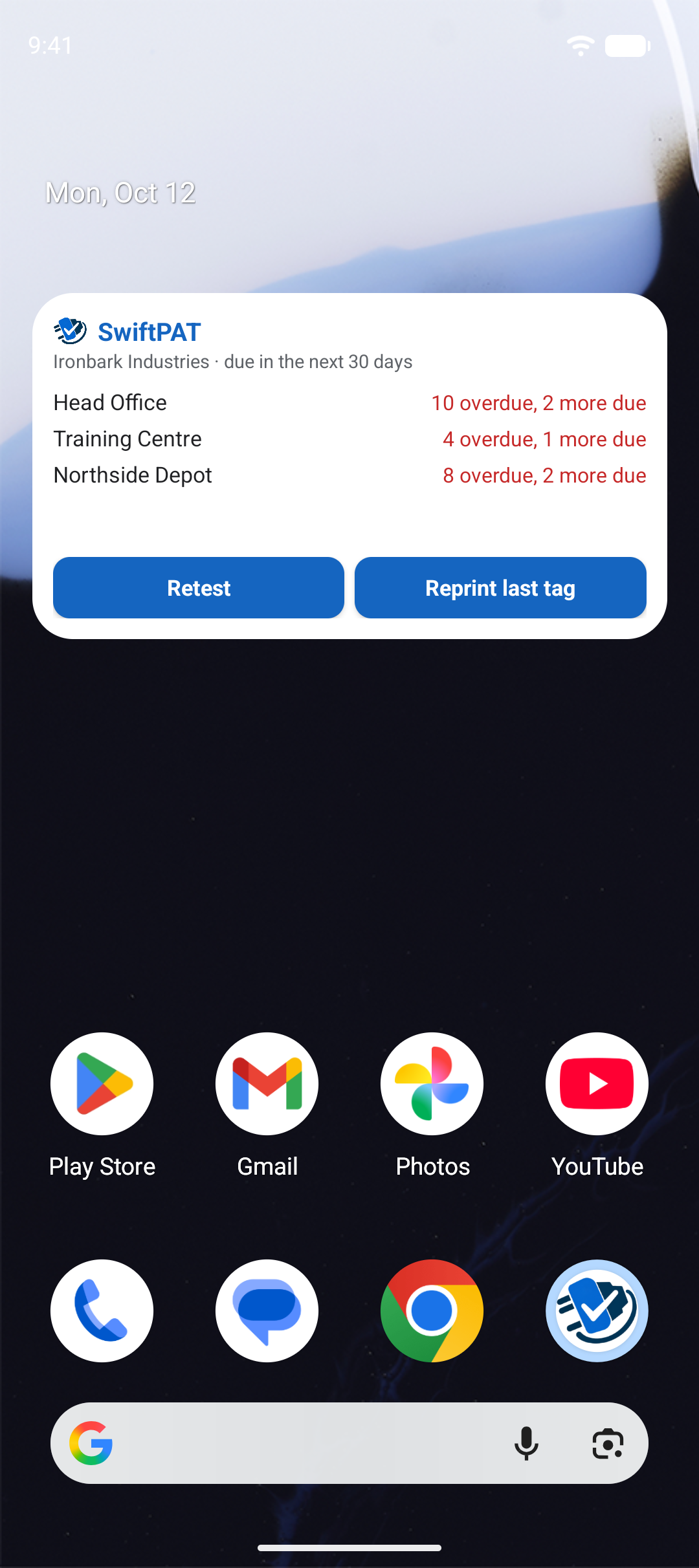
Reminders and the home-screen widget
Turn on due reminders to be notified when appliances at a site are approaching their retest date. The home-screen widget shows the sites due soonest. App icon shortcuts open Retest or let you reprint the last tag.
Works where you work
No account, login or internet connection is required. Work in plant rooms, basements and switch rooms without relying on a signal. Your records stay on your device. The SwiftPAT mobile app supports Android phones and tablets, with a two-column layout on tablets and a dark mode.
Australia and New Zealand
Set each client to Australia or New Zealand. SwiftPAT applies the relevant country-specific options for AS/NZS 3760:2022, including New to Service tags for Australian clients.