 SwiftPAT
SwiftPAT supports the Zebra ZQ520 and ZQ521 (100 × 50 mm tags) and the Godex RT200 (99 × 43 mm tags).
- Turn on the printer and pair it through your Android device's Bluetooth settings.
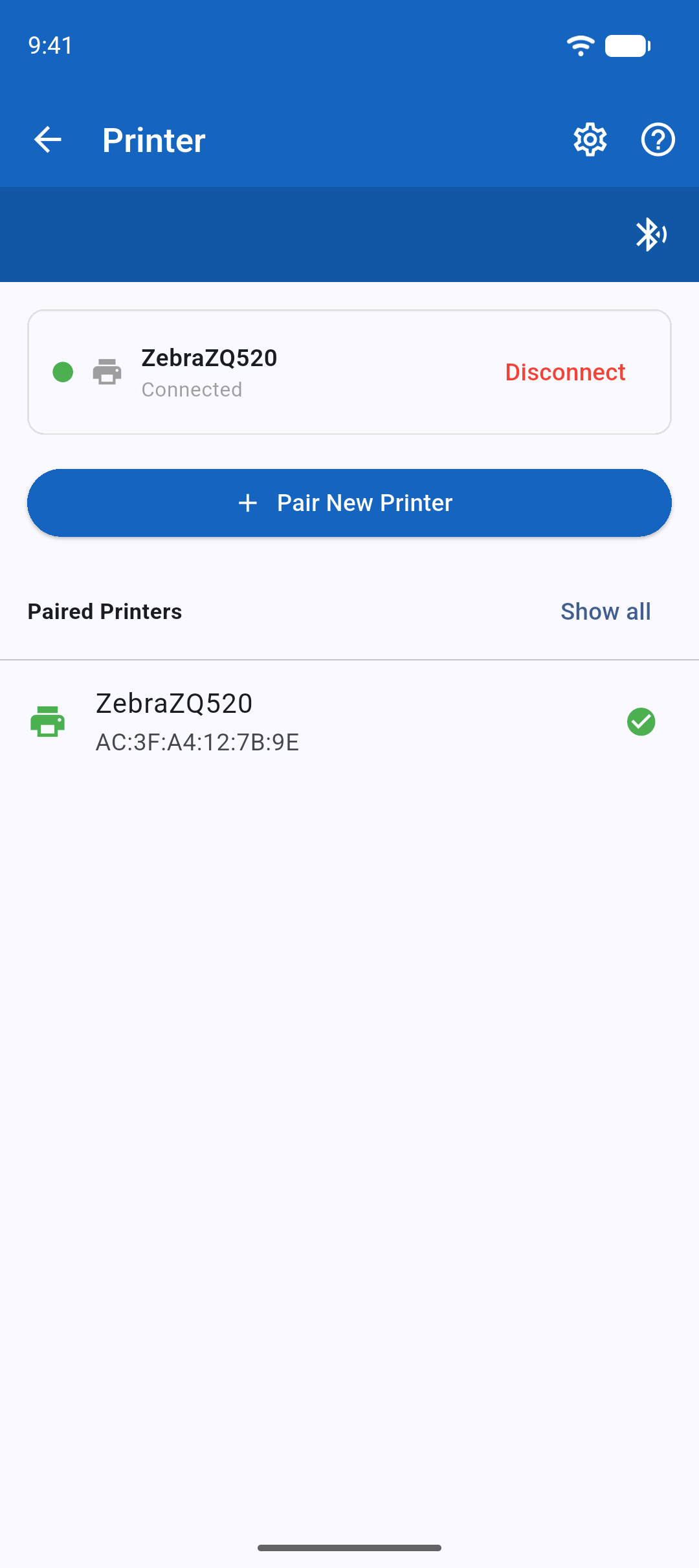
- In SwiftPAT, open Settings, then Printer, and choose your printer type.
- Tap your printer in the list to connect.
The printer button at the top of Test & Tag, Retest & Scan and Quick Print shows the connection status. Tap it to select a different printer.
If the printer will not connect
- Check it is switched on and has paper in it.
- Check that the printer appears as paired in your Android Bluetooth settings.
- If the printer button shows orange, the printer type chosen in SwiftPAT does not match the printer connected. Choose the right one in Settings › Printer.